Set the Total Loss Threshold
Set the Total Loss Threshold
You can designate Total Loss vehicles by marking the estimate as a total loss. In order to do so, the Total Loss Threshold needs to be set in the Estimate Profile.
Set Total Loss Threshold in Estimate Profile
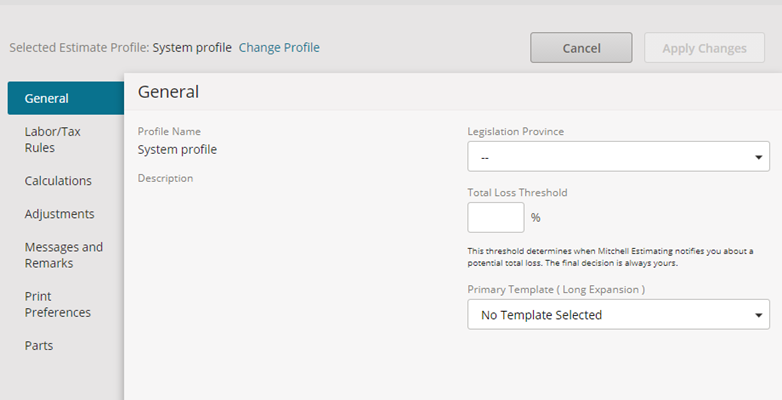
Note: The Total Loss Threshold is displayed in the Estimate Profile. The Total Loss Threshold determines when Mitchell Cloud Estimating notifies you about a potential total loss. The final decision is always yours. This threshold is saved automatically and imported with the Estimate Profile if created in UltraMate.
- Click the Estimate Profile
 icon in the left navigation panel to navigate to the Estimate Profile.
 - Click Edit
 and enter the Total Loss Threshold in the corresponding field.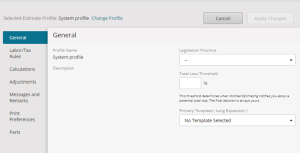


Total Loss Designation
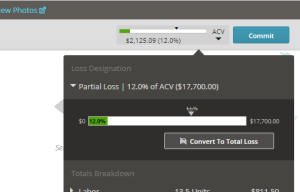
- Click the Estimate Total in Mitchell Cloud Estimating to view the Totals Breakdown. In the Loss Designation section, the estimate total is shown as a percentage of the Approximate Cash Value (ACV) of the vehicle.
- Click Convert to Total Loss in the Loss Designation section to designate the vehicle as a total loss in the estimate.