|
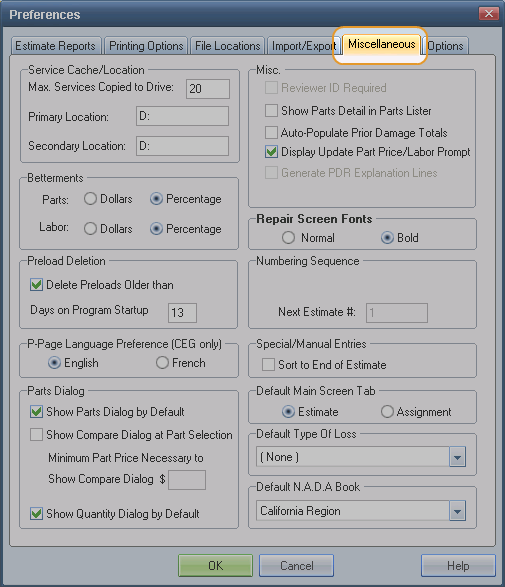
Service Cache/Location
|
|
Max Services Copied to Hard Drive
|
Sets the maximum number of uncompressed services to be copied to the hard drive. The default is 20 services. If you specify a 21st service, the first is deleted. If a 22nd service is specified, the second is deleted, and so on.
Note: In a multiuser environment, this number should match or exceed the number of Mitchell Estimating users.
|
|
Primary Location
Secondary Location
|
Indicates the path on the hard drive where the services are stored. You can indicate a secondary location if needed.
|
|
Betterments
|
|
|
Parts
|
Specifies whether Parts Betterment defaults to a percentage or dollar amount.
|
|
Labor
|
Specifies whether Labor Betterment defaults to a percentage or dollar amount.
|
|
Preload Deletion
|
|
Delete Preloads Older than
|
Enables the automatic deletion of assignments at startup time.
|
|
Days on Program Startup
|
Determines the number of days an assignment should remain in the system before it is deleted. This field is available when the Delete Preloads Older than check box is selected.
|
|
P-Page Language Preference (CEG only)
|
|
English
French
|
Select to view the P-Pages in English or French.
|
|
Parts Dialog
|
Note: Use these settings to automate and define how the Part Detail, Part Compare, and Part Quantity dialog boxes appear as you select CEG parts.
|
|
Show Parts Dialog by Default
|
Select this check box to display the Parts Detail dialog box when a part is added to the repair line. Clear the check box to suppress the Parts Detail dialog box.
Tip: From this dialog box, you can also compare replacement part types and the cost to repair versus replace a part.
The check box is selected by default.
|
|
Show Compare Dialog at Part Selection
|
Select this check box to display the Part Compare dialog box when a part is added to the repair line.
Use the Part Compare dialog box to compare the cost of the following replacement part types: new, aftermarket, remanufactured, and recycled. You can compare the cost of different replacement part types and decide which one you want to use in your estimate.
Clear this check box to display the Compare button on the Template dialog box. Use the Compare button to open the Part Compare dialog box to compare individual parts on the repair lines you select.
The check box is not selected by default.
|
|
Minimum Part Price Necessary to Show Compare Dialog
|
You can set a minimum price a part must have to display the Part Compare dialog box. When you select a part with a price greater than or equal to the amount you enter here, the Part Compare dialog box appears. The default value is 0; the maximum value is 9999.
|
|
Show Quantity Dialog by Default
|
Select this check box to display the Specify Quantity dialog box when a part which allows multiple instances is selected. Use the Specify Quantity dialog box to add multiple part quantities on one repair line instead of having to select the repair line multiple times.This functionality applies only to repair lines with the Remove/Replace labor operation. If the labor operation is changed, the quantity is reset to 1.
The check box is selected by default.
|
|
Note: In a multiuser environment, Parts Dialog settings apply to the workstation only.
|
|
Misc
|
|
Reviewer ID Required
|
Select this check box to require a reviewer ID in the estimate before it can be committed.
This setting is not applicable to insurance companies. It can be deactivated for shops that do not use communications.
|
|
Show Parts Detail in Parts List
|
Select this check box to display detail part information in the CEG part list (on the Repair tab).
|
|
Auto-Populate Prior Damage Totals
|
Select this check box to automatically enter the estimate total for all related prior damage into the Customer Responsibility field on the Prior Damage dialog box. The check box is selected by default. When the check box is not selected, you can manually enter the amount.
Note: Customer Responsibility appears in the Adjustments section of the estimate report.
|
|
Display Update Part Price/Labor Prompt
|
Select this check box to receive a prompt when updated part prices or labor times are available for parts on a committed estimate. The notification appears when you open the estimate. The check box is selected by default.
When you accept updates, the letter F is appended to the estimate ID to indicate a full calculation.
When you reject updates, the letter P is appended to the estimate ID to indicate a partial calculation.
Note: In a multiuser environment, this setting applies globally. Administrator rights are required to modify this setting.
|
|
Generate PDR Explanation Lines
|
Select this check box to automatically add system-generated explanation lines to paintless dent repair lines when the dent size is greater than zero. The explanation lines provide detail information about the total value of the repair line. Explanation lines also include information about the number and size of dents. The check box is not selected by default.
Note: In a multiuser environment, this setting applies to the workstation only.
|
|
Safety Recall Notices Auto-Prompt
|
Select this check box to receive a prompt when safety recall information exists for a selected vehicle. This check box is active when the Safety Recall Notices value-added option is active. The check box is selected by default.
|
|
Repair Screen Font
|
|
|
Select the font to be used for repair lines. The default is Bold.
|
|
Numbering Sequence
|
|
Next Estimate #
|
Sets the numbering sequence for estimates. The default is 1.
|
|
Special/Manual Entries
|
|
Sort to End of Estimate
|
Select this check box to sort Special/Manual Entry repair lines (Part Service code 900500) at the bottom of the estimate. The repair lines are sorted when the estimate is calculated. This setting cannot be changed after the estimate is created. The check box is not selected by default.
|
|
Default Type Of Loss
|
Set a default loss type to display in the Type of Loss field on the Admin>General tab. You can change it as needed in individual claimsestimates. A default loss type can be helpful if you usually write estimates for a certain type of loss.
|
|
Default Main Screen Tabs
|
Select the tab you want to appear on the main window. The default is Estimates.
|
|
Default NADA Book
|
|
|
The default source for vehicle base values. This may have been selected when Mitchell Estimating was installed, but you can change it here. This system uses the selected NADA region when creating system profiles. You can modify the region in different profiles.
- California Region
- Central
- Desert Southwest
- Eastern
- Midwest
- Mountain States
- New England
- Pacific Northwest
- Southeast
- Southwest
Note: Canadian users receive Canadian Red Book.
|

 Access Miscellaneous preferences