
Use QRP (Quality Recycled Parts) to add part prices for ATG parts to your estimates.
Mitchell's QRP product provides prices for used parts and assemblies, and vendor location and contact information. When you combine QRP with ATG, you can include part prices, as well as labor times, for any used parts you add to your estimates.
Note: This part list is not available on medium and heavy duty truck estimates. QRP data is stored on your hard drive and is periodically updated with the latest information from the Mitchell host computer.
When QRP is installed, the Quality Recycled Part Selector dialog box appears when you select an assembly from the ATG parts list. This dialog box also appears when you select a labor operation that has additional details (for example, markup or explanation lines).
The Quality Recycled Part Selector dialog box can list more than one part and the associated labor times. Available vendors and recyclers are also listed, along with part price and other information. If there are no available vendors or recyclers for the part, the default option “None/Use My Own” is automatically selected.
How to
 Select a part
-
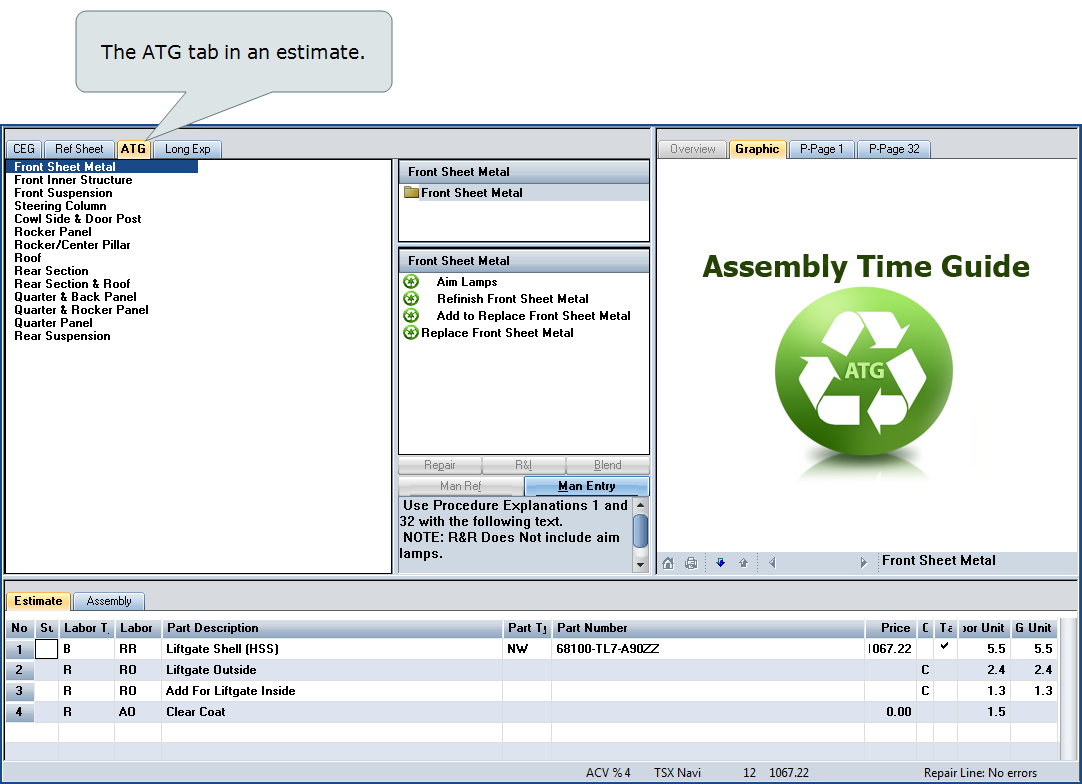
In an open estimate, click the ATG tab.

-
Locate and double-click the assembly you want to add.
-
On the Quality Recycled Part Selector dialog box, under Description, click to select the part you want.

- Under Recycler, do one of the following:
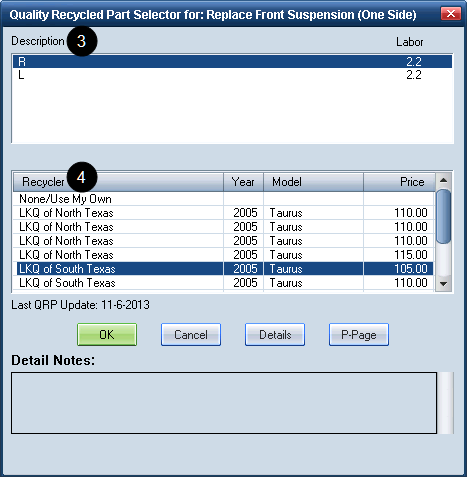
- To use your own part, click None/Use My Own.
- To use a supplier's part, click to select the part you want.
- Click OK. If additional labor is needed for the repair (for example: "clean and visually inspect"), the Additional Labor Operations dialog box appears.
- On the Additional Labor Operations dialog box, do one of the following:
- To add additional labor, click to select the necessary additional labor, and then click OK.
- To exclude additional labor, click Cancel.
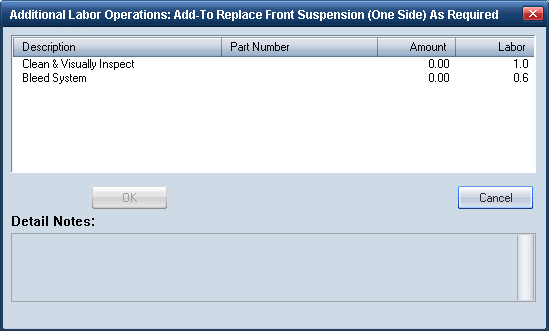
Tip: These are called Add-To lines.
The repair line for the QRP assembly is added to the estimate, along with any Add-to repair lines.
- On the repair line, enter Price information as needed.
Select a recycler
- On the Quality Recycled Part Selector dialog box, in the Description list, select the part.
- In the Recycler list, select the supplier.
Note: If the part has one or more suppliers associated with it, they are listed in the Recycler section. If the assembly has no suppliers, then the only Recycler choice is None/Use My Own, which you can always select.
- Click Details to view information for that supplier.
- On the Salvage Details dialog box, review the information if needed, and then click Close to return to the Part Detail dialog box.
- Click OK to save the assembly and supplier information with the estimate. This information prints on the estimate report.
Reference
Window Components – QRP Selector
|
Description |
A list of quality recycled parts for the selected part. Select one part at a time. Note: Labor operations can also appear if a labor operation with additional details is selected. |
|
Labor |
The associated labor units. |
|
Recycler / Year / Model / Price |
If one or more suppliers is available, the names appear in this list, along with the vehicle year and model, and the part price. If the part has no associated supplier information, “None/Use My Own” appears. The default sort order is by Recycler, but you can change that by clicking the Recycler, Model, or Price columns. Columns sort in ascending order, and “None/Use My Own” always appears at the top of the list. Note: The sort order remains in place |
|
OK |
Click to add the selected assembly to the estimate. If additional parts or labor are necessary to complete the repair, the Additional Labor Operations dialog box appears so you can include Add-To lines. |
|
Details |
Displays the Salvage Details dialog box. |
|
P-Pages |
Accesses the electronic P-Pages. |
|
Detail Notes |
Displays editorial ATG notes. |
|
See also: |
