
Use the Rules tab to automatically select a specific profile when starting an estimate.
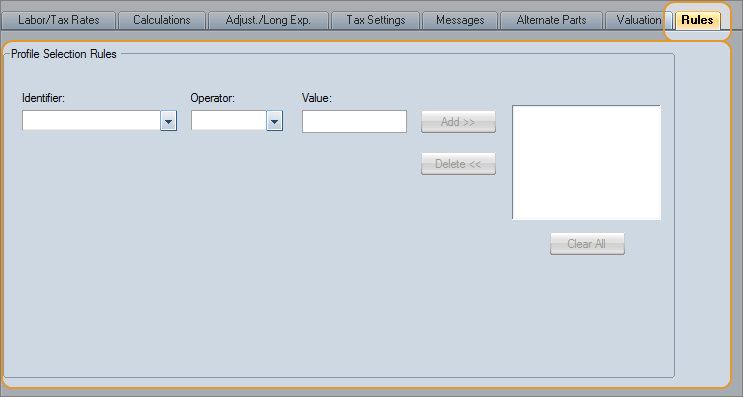
You might need to use Rules because your business partner requires certain rates for particular vehicle types. Perhaps the Department of Insurance has mandated certain rates based on vehicle age or mileage. In these cases, it's important that the correct profile is used when creating the estimate.
Note: The profile whose business rules match the estimate's data is automatically selected, overriding any default profile mapped to a body shop. However, if no matching profile is found, the current default profile is used.
Note: Automatic profile selection occurs only once, when the estimate is started for the first time.
How to
 Create a profile selection rule
This procedure describes how to create a rule based on the location of the repair facility.
Here's an example: When the ZIP code of a body shop identified in the
- Select the Identifier. In this example, the Identifier is Body Shop ZIP.
- Select the Operator. In this example, the Operator is is in.
-
Enter a Value. In this example, the Value is all ZIP codes where you want this profile to be used. Use spaces to separate the ZIP codes.
Here's what the rule looks like:

-
Click Add. The rule is, "If the shop's ZIP code is one of these ZIP codes, then use this profile."
Note: You can enter up to 5 rules, but keep in mind that Rules use "And" conditions. This means that all of the rules must be met before the profile is used.
Reference
Import/Export Rules
When a profile is automatically selected for an estimate, the business rules on the profile are exported and imported with the estimate.
Business rules associated with a profile are exported and imported with the profile.
Profile Selection Rules
|
Provides three variables with which to build your business rule: Identifier, Operator, and Value. Together they create the parameters of the rule that tell WorkCenter Appraisal which profile to select. |
|
|
Identifier |
Select what the rule will be based on.
|
|
Operator |
Select how the Value relates to the Identifier.
OR (for Vehicle Year, Vehicle Mileage, Claimant Date):
|
|
Value |
Enter the value that corresponds to the Identifier. For example, if you want this profile used in estimates for vehicles made before 1995, you would enter 1995 here. Your rule would look like this: Vehicle Year < 1995 |
|
Rules |
This is the list of rules created for this profile. (Up to five rules.) |
|
Add |
Click this button to add a new rule to the Rules list for the current profile. This button is active only when the Identifier, Operator, and Value fields have an entry (and when there are fewer than five existing rules). |
|
Delete |
Click this button to delete a selected rule from the Rules list. This button is active only when there is at least one business rule associated with the current profile and when a rule is selected. |
|
Clear All |
Click this button to clear all business rules associated with the current profile. This button is active only when there is at least one business rule associated with the current profile. |
|
See also: |
