
Use the Names tab to enter name and address information for the people and companies associated with the estimate.
You can select (modify and copy) name and address records already entered in the Mitchell Estimating Name and Address Lists, add the information you enter here to the Name and Address List, or enter name and address information for the open estimate only.
How to
 Enter name information for the open estimate only
For each name type you want to include in the estimate, do one of the following
- Click the Last Name arrow, and select a name from the list. The first name for the selected name record automatically displays.
- Type a new First Name and Last Name. Click Dtl to enter any other address/phone/contact information you want to include.
Add name information to the Names and Address list
- On the Names tab, type a new Last Name and First Name, and click Dtl.
- On the Detail dialog box, enter any address, phone, contact information you want to include, and click Add to List.
- At the message that the record has been added to the Name Address List, click OK.
Modify an existing record in the Names and Address list
- On the Names tab, click the Last Name arrow, select a name from the list, and then click Dtl. The detail dialog box for the selected name appears.
- On the Detail dialog box, make the necessary changes to the detail information, and click Modify.
- At the message that the record has been modified, click OK.
Copy name and address information to another record
Sometimes name and address information is the same for Owner, Insured, Claimant, and so on. For example, the Insured or Claimant may also the Owner.
To save time entering the information, you can copy the name and address information from one record to another.
- Open the Detail dialog box of the record you want to copy.
- Make sure the record has information in at least the Last Name field.
- Click the Copy To arrow, and select the record you want to copy the information to. The following options are available:
- For Insured, you can copy to Claimant, Owner, and Appraised For.
- For Claimant, you can copy to Insured and Owner.
- For Owner, you can copy to Insured and Claimant.
- For Appraised For, you can copy to Insured.
- Click Copy.
- If the target record already contains information, a message appears stating that the existing information will be overwritten. Click OK to overwrite the information. Click Cancel to cancel the copy function.
- At the message that the record has been copied, click OK.
Select a company name to print on the Estimate report
- Click the Estimate Header arrow, and select the company name you want to print on the report, or select the empty record to leave the heading blank.
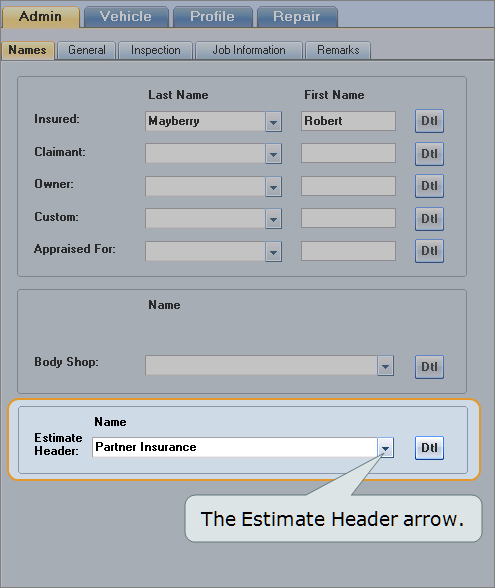
Note: If a name you want to use isn't in the list, you can enter the information here, but it will apply to this estimate only. Use the Company Data dialog box to add the record permanently.
Print your default company name on supplements
- On the System Info menu, click Company Data.
- On the Company dialog box, select or enter the Name of your shop.
- Enter any other information as needed, and then click OK.
- On the System Info menu, click Preferences.
-
On the Printing Options tab, click the Use My Default Company Heading for All Supplements check box.
The name you entered in step 2 automatically prints on supplements regardless of who wrote the original estimate.
Reference
Window Components – Names tab
|
Last Name |
The last name of each party associated with the estimate. Type a name, or click the arrow in the field to choose a name from the list. |
|
First Name |
The first name of each party associated with the estimate. Type a name, or if you choose a last name from the list, the first name from the record displays. |
|
Insurance Company Body Shop |
Depending on your installation type, you can enter the insurance company or body shop associated with the claim. Click the arrow in the field to choose an existing company or shop name from the list, or type a new name. Maximum field length is 80 characters. |
|
Estimate Header |
Select the company name you want to print on the estimate report, or select the empty record to leave the heading blank. Note: If a name you want to use isn't in the list, you can enter the information here, but it will apply to this estimate only. It won't be added to the Name & Address list. Use the Company dialog box to add the record permanently. |
|
Copy To Copy |
You can copy the current information to another entity (Appraised For, Claimant, Insured) and avoid reentering it manually. |
|
Add to List |
When entering a new first or last name, click this button to save the detail information to the Name and Address List. |
|
Add New |
When working in an existing record, click this button to create a new record with the same Last Name and First Name as the existing record but with different detail information, such as address. |
|
Modify |
When working in an existing record, click this button to update the Name and Address List with any changes made to the record. |
|
Click this button to display the Names detail dialog box where you can enter address/phone/contact information you want to include. You can also add this information as a record in the Name and Address List. (Adding a record to the Name and Address List makes it available for use again without having to reenter the information.) Changes made just to the Last Name and First Name fields are not saved to the record in the Name Address List. |
|
See also: |
