Online Parts Profiles
Mitchell Parts Portal is a web-based estimating tool that provides users with quick access to alternate parts data while they are writing estimates. They are able to make all of their parts and supplier selections in one location.
This is achieved through the Online Parts Profile in Mitchell Estimating. The Estimate Profile supports this method of selecting alternate parts and contains related fields on the Alternate Parts tab.
Parts Profiles are automatically made available to users in Mitchell Estimating. Parts are automatically filtered based on profile settings. No manual updates or daily downloads are needed; part and vendor data is automatically updated.
 How it Works: Two Roles and the Required Steps
Role - Administrator:
- Logs in and creates Parts Profiles (insurance companies use WorkCenter to do this; shops use RepairCenter).
- Insurance users assign Parts Profiles to staff users and shop partners.
Role - Appraiser:
- Receives Parts Profiles automatically in Mitchell Estimating, when the application loads.
Note: You can also refresh the Parts Profiles list manually at any time by clicking the Refresh Parts Profiles button on the Alternate Parts tab of the Mitchell Estimating Profile.
- Selects the appropriate Parts Profile to apply to the estimate, from inside the Estimating Profile.
- A filtered list of parts is downloaded based on the vehicle and the selected Parts Profile.
How to
Select the Parts Profile: Insurance Appraisers and Staff
The insurance appraiser selects Parts Profiles from inside the Mitchell Estimating Profile. The list of available profiles is automatically downloaded for the user when the application is loaded. The appraiser then selects a Parts Profile to apply, as described below.
Note: You can also refresh the Parts Profiles list manually at any time by clicking the Refresh Parts Profiles button on the Alternate Parts tab of the Estimating Profile.
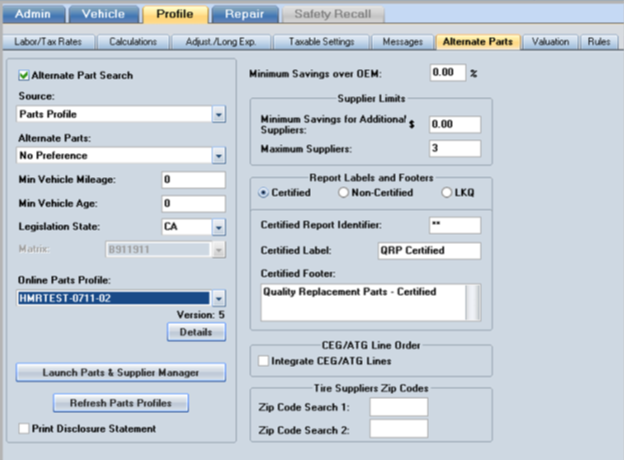
The Alternate Parts tab displays the related Parts Profile fields.
- Click the Alternate Part Search check box at the top left of the screen.
- In the Source field, select Parts Profile from the list. The screen refreshes with the appropriate entry fields enabled.
- The Alternate Parts field contains a list of filters for further part filtering. When using the Mitchell Parts Portal tool, this field is filled in with No Preference as the default.
- In the Online Parts Profile field, select the appropriate Parts Profile from the list. The list will contain the Parts Profiles available to the logged-in user.
- Once you have selected the Parts Profile, the list collapses, displaying the name of the specified Parts Profile, along with the version number. (The Details button is then enabled.)
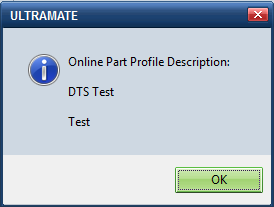
- Click the Details button to access a dialog box displaying the full Parts Profile name and a description of the Parts Profile.

- Click the Refresh Parts Profiles button to manually refresh the Parts Profile list at any time.
Note: The Launch Parts and Supplier Manager button is disabled for insurance appraisers and staff.
The remaining steps of the estimating workflow remain the same as used for the established method of alternate parts search using the Mitchell Alternate Parts Program (MAPP) and the Quality Recycled Parts (QRP) feature.
Create or Modify Parts Profiles: Shops
Shop personnel create new Parts Profiles or view/modify existing Parts Profiles from inside the Mitchell Estimating Profile.
Note: For shop installations, the Launch Parts and Supplier Manager button is enabled.
- Click the Launch Parts and Supplier Manager button.
- This will launch an internet browser session and will navigate to the Parts Profile page in RepairCenter.
- The user will automatically be logged in with proper credentials.
- From RepairCenter, shops can create or modify Parts Profiles.
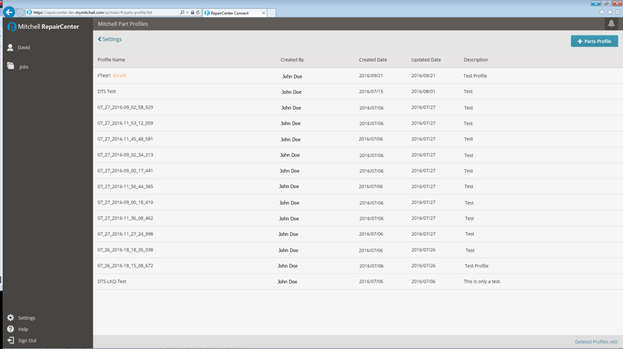
Download Parts DataParts data is transferred to your computer after you return to the estimate on the Repair tab. The alternate parts data is then stored for offline use.
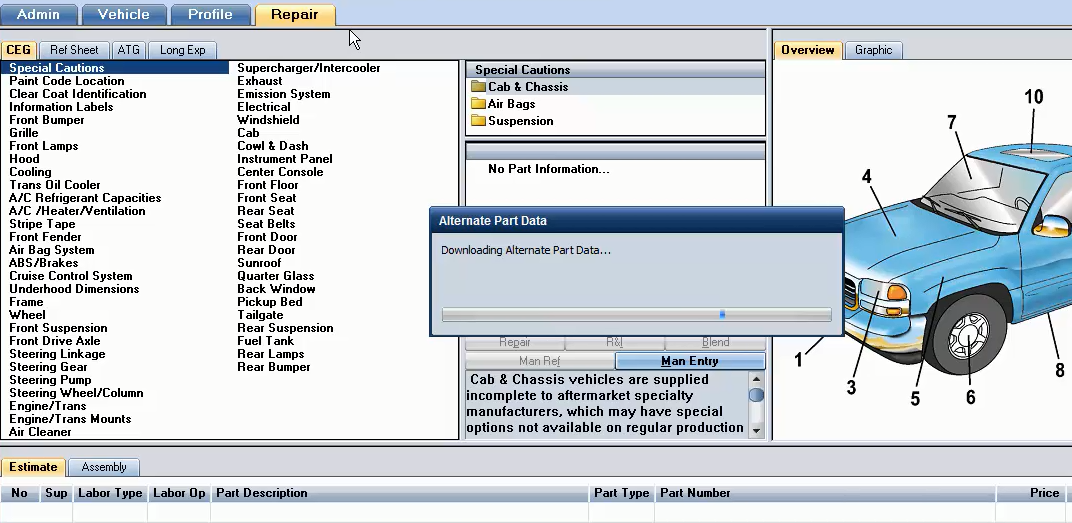
- Return to the estimate to download parts data.
- Click the Repair tab to access the estimate.
- The parts information is automatically downloaded to your computer and the message "Downloading Alternate Part Data" appears.
- After the parts data is transferred, the process is the same as when using the MAPP and QRP tools. Proceed as you normally would when dealing with recycled parts, aftermarket parts, and remanufactured parts.
Select Alternate Parts
Make alternate parts selections in the same way that you have in the past, using the established methods. You can select parts using the Part Compare dialog box or using the calculation substitution method.
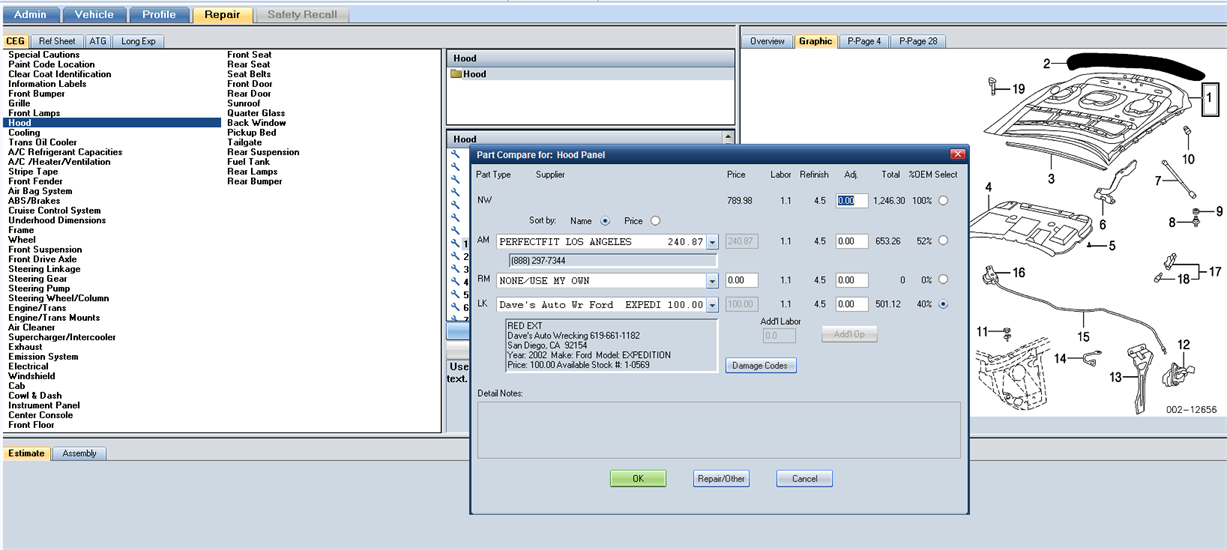
Select Alternate Parts using Part Compare Dialog Box
- From the Repair tab, click the CEG tab, then select the part or panel you need to compare (e.g., the Hood Panel in the example above).
- The Part Compare dialog box appears. Make any necessary changes to part details and click OK.
Select Alternate Parts using Calculation Substitution
You can also select parts using the calculation substitution method. When you calculate an estimate, the system automatically searches for qualified alternate parts for any OEM parts. When such parts are found, the system automatically uses those in the estimate instead of the OEM parts.
- Start an estimate using the Parts Profile that was previously modified to automatically use alternate parts.
- Add repair lines to the estimate. Parts selected from the CEG tab are initially added to the repair lines as OEM parts.
- Calculate the estimate. The system uses the alternate parts settings to search for qualified alternate parts for any OEM parts in the repair lines. When qualified alternate parts are found, the system automatically uses those in the estimate. When aftermarket parts are auto-substituted, the Part Type displays "AM." When recycled parts are substituted, the Part Type displays "LK."
For detailed steps, refer to the training video, "How to Use Parts Profiles in Mitchell Estimating" at the following link:
https://lms.cfs-api.com/v2/scorm/lms.aspx?token=7ed0c7d1-86aa-4612-b1ad-6dcb4703bbd1&lang=en-US
|
See also: |
|
| Alternate Parts Tab |
