
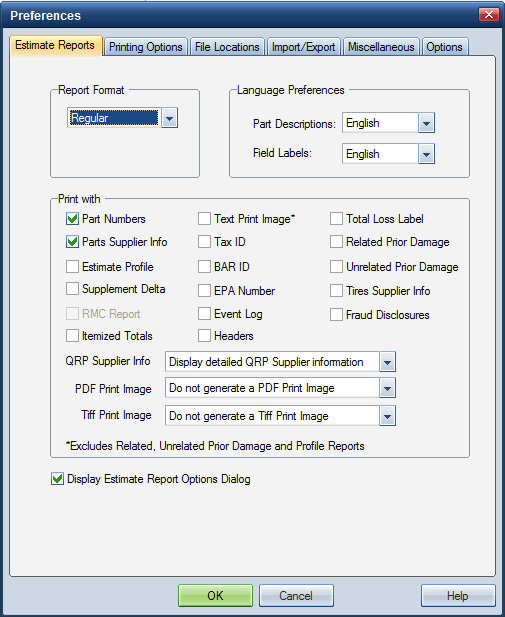
Use the Estimate Reports preferences tab to define the default format, language, and content preferences for estimate reports.
Note: You can modify all settings (except Tax ID, BAR ID, and EPA Number) when you print or preview a report. Be sure to select the Display Estimate Report Options Dialog check box on this preference tab.
How to
 Access Estimate Reports preferences
- Close any open estimates.
- On the System Info menu
Print part
descriptions and field labels in Canadian French and Spanish
- On the Estimate Reports tab, under Language Preferences, select your language preference in the Part Description and Field Label fields.
You can modify the language settings on the Report Options dialog box when you print or print preview a report.
Reference
Window Components — Estimate Reports preferences tab
|
Regular |
Prints a regular estimate report. The current version of Mitchell Estimating and data used for the estimate appears on the bottom of the estimate. |
|
Amounts Only |
Prints the labor for each repair line and the labor totals for the estimate in terms of dollar amounts instead of labor units. |
|
Audit |
Prints the Estimate report in Audit format. In this format, the standard Mitchell Collision Estimating Guide labor times are displayed in the final column of the printed estimate. You can use these for comparison with your estimate times. |
|
Part Descriptions |
Sets the default language for printing Part Descriptions and Field Labels: English (the default), French Canadian, or Spanish. Note: Spanish language translation is a value-added option. |
|
Part Numbers |
Select this check box to include the part number for the repair line. Note: This option applies only to part numbers supplied by the manufacturer. |
|
Select this check box to attach the MAPP supplier information to the Estimate report. |
|
|
Profile |
Select this check box to print the Profile report when an estimate is printed. |
|
RMC Report |
Select this check box to print a separate Refinish Materials Calculation report when an estimate is printed. Note: The report includes RMC information for the primary estimate only. You can print separate RMC reports from the Refinish Materials Calculation dialog box in the estimate. Note: RMC is a value-added option. |
|
Select this check box to print an Itemized Totals report when an estimate is printed. The Itemized Totals report contains sections for each of the following in the Print and Totals dialog boxes: Labor subtotals for every Labor Operation, Part Adjustments subtotals for each Part Type, markup, and discount, and an Adjustments subtotal for Parts and/or Labor Betterment. For Canadian estimates, this report includes itemization for GST/HST and Sales Tax. When selected, this check box also appears selected in the Report Options window of the estimate. Note: This check box is not available if the Amounts Only report format is selected. |
|
|
Select this check box to save the formatted report to the \mitchell\aces\image directory as a pair of text files. The files are saved with either a .est or .prn extension. This format excludes the Related Damage, Unrelated Damage, and Profile reports. Note: Text file names include the estimate ID, supplement number, and correction number. For example, the file name estid_0_1.tif represents a .tif file for an estimate ID of estid, supplement 0, and correction 1. The system replaces special characters in the estimate ID ($%&+=,./) with an underscore(_). |
|
|
Select this check box to print a Supplement Delta report when an estimate is printed. |
|
|
Select this check box to print the business TAX identification number in the estimate header. The information comes from the Company dialog box. |
|
|
Select this check box to print the Bureau of Automotive Repair (BAR) identification number in the estimate header. The information comes from the Company dialog box. |
|
|
Select this check box to print the Environmental Protection Agency (EPA) identification number in the estimate header. The information comes from the Company dialog box. |
|
|
Select this check box to print a heading for each part category. The heading is slightly offset in the repair line to make it easier to read. Note: This setting cannot be used with the Text Print Image. |
|
|
Event Log |
Select this check box to attach the Event Log to the end of the Estimate report. The Event Log prints on a separate page and is saved in the same file format (.txt, .tif, .pdf) selected for the Estimate report. |
|
Total Loss Label |
Select this check box to apply the label TOTAL LOSS to the printed report
and the print image when Total Loss is selected as the Loss Designation on the |
|
Related Prior Damage |
Select this check box to print the Related Prior Damage report an estimate is printed. The Related Prior Damage report prints after the Estimate report. |
|
Select this check box to print the Unrelated Prior Damage report an estimate is printed. The Unrelated Prior Damage report prints after the Estimate report. |
|
|
Tires Supplier Info |
Select this check box to print tire supplier information when a supplier was selected in the estimate. This information prints the same way alternate parts supplier information prints. Note: The Tires Database is a value-added option. |
|
Select how you want QRP information to appear on the estimate report.
Note: You can change this setting on the Report Options dialog box when you print an estimate. The system saves, imports, and exports the settings you select here with the estimate. |
|
|
|
Saves the report to the \mitchell\aces\image directory as a .pdf file. A .pdf viewer is required (Adobe" Reader") to view the file. This print image includes any related and unrelated prior damage information on the estimate.
Note: If you do not have access to the mitchell\aces\image directory, you can create a copy PDF print image and save it to a different location. |
|
Saves the report to the \mitchell\aces\image directory as a .tif graphic file. A .tif viewer comes with all supported operating systems and allows you to convert the file to any format. This print image includes any related and unrelated prior damage information on the estimate. Note: Do not select this option if you plan to export the file to eClaim Manager. Do not generate a Tiff Print Image: The report is not saved as a .tif file. This is the default. Generate a single file Tiff Print Image: The report is saved as a single .tif file. The different types of damage information on the estimate are included in one file. Generate a multi-file Tiff Print Image: The different types of damage information on the estimate are saved as separate .tif files. |
|
|
Note regarding .tif and .pdf file names: Tiff and PDF file names include the estimate ID, supplement number, and correction number. For example, the file name estid_0_1.pdf represents a .pdf file for an estimate ID of estid, supplement 0, and correction 1. The system replaces special characters in the estimate ID ($%&+=,./) with an underscore(_). |
|
|
Display Estimate Report Options Dialog |
Select this check box to display the Report Options dialog box when an estimate is printed. You can use the Report Options dialog box to change report preferences before you print a report. If this check box is not selected, the report prints based on the preferences selected on this tab. Note: This does not apply to print preview or Total Loss reports. |
|
See also: |
