
Use the image window on the Repair tab to view a graphic of a part selected in the part list. You can also view the P-Pages for a selected part, add a part to the repair lines, view an Overview image of the vehicle, and navigate the part list from the Overview image.
How to
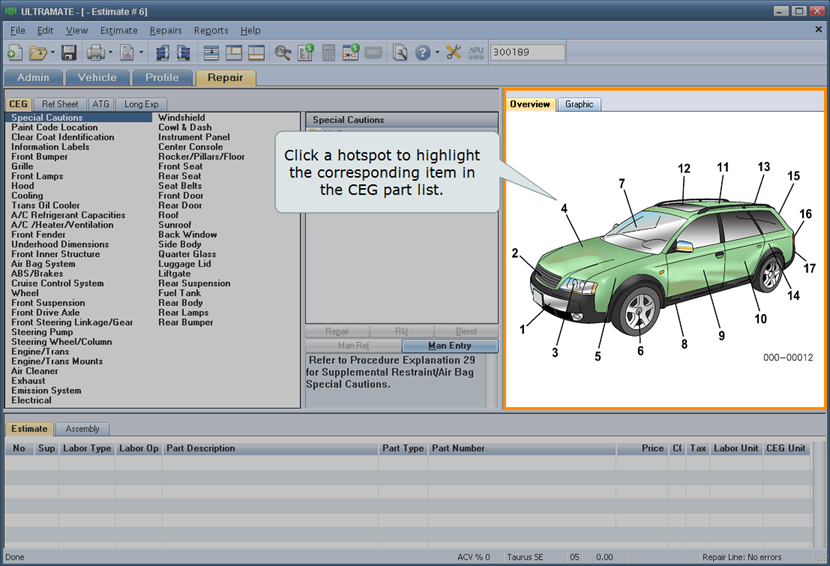
 Navigate the Part List from the Overview tab
Use the Overview tab to navigate to a specific area of the CEG part list.
-
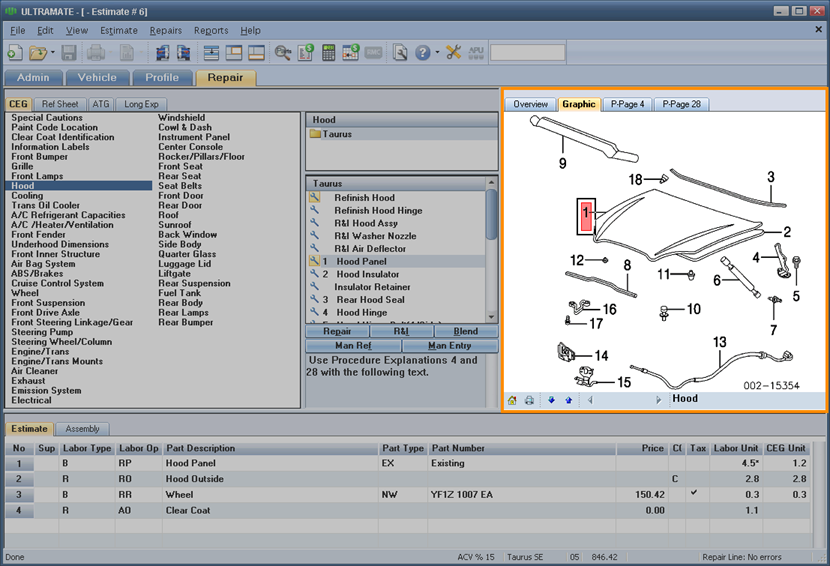
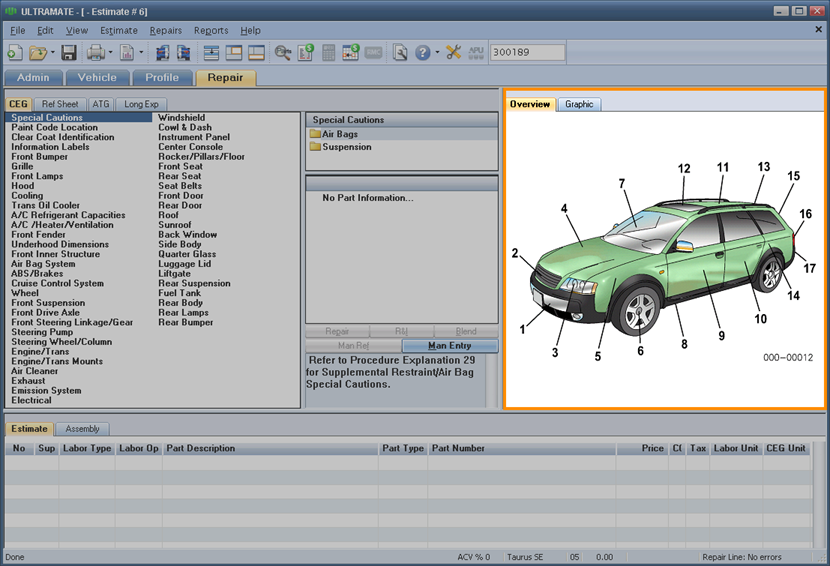
Click a hot spot on the Overview tab to highlight the corresponding part category in the part list and display the part subcategories and part detail. The part graphic appears in the Graphic tab. The first available part in both the part list and the graphic is selected.

-
Use the navigation bar at the bottom of the Graphic tab to move through the part list. You can also print the displayed graphic and return to the Overview tab.

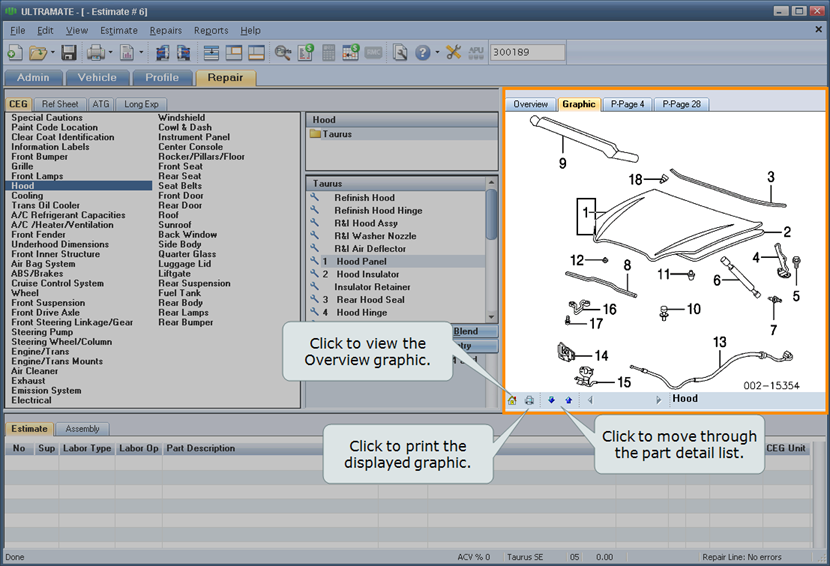 Add a part to the repair lines from the Graphic tab
On the Image window, for the part you want to add to the repair lines, do one of the following:
- Double-click the hot spot.
- Right-click the hot spot, and click Select Part.
- Drag and drop the hot spot to the repair lines.
If multiple parts are available, the Part Detail dialog box appears. If multiple instances of the part are allowed, the Specify Quantity dialog box appears.
Print a CEG or ATG graphic
- Select a CEG part or an ATG operation, and do one of the following:
- On the File menu, point to Print, and click Graphic.
- Click the Print toolbar button arrow, and click Graphic.
- In the Image window, right-click anywhere on the image, and click Print Graphic.
The Print Setup dialog box appears.
- Select the printer, properties, and the like as needed, and click OK.
Display part-specific P-Pages
The P-Page tabs display P-Page information for the selected parts.
- Select a CEG part or an ATG operation. If the selected part has P-Pages associated with it, tabs appear next to the Graphic tab.
-
Click the P-Page tab to display the P-Page in the Image window.

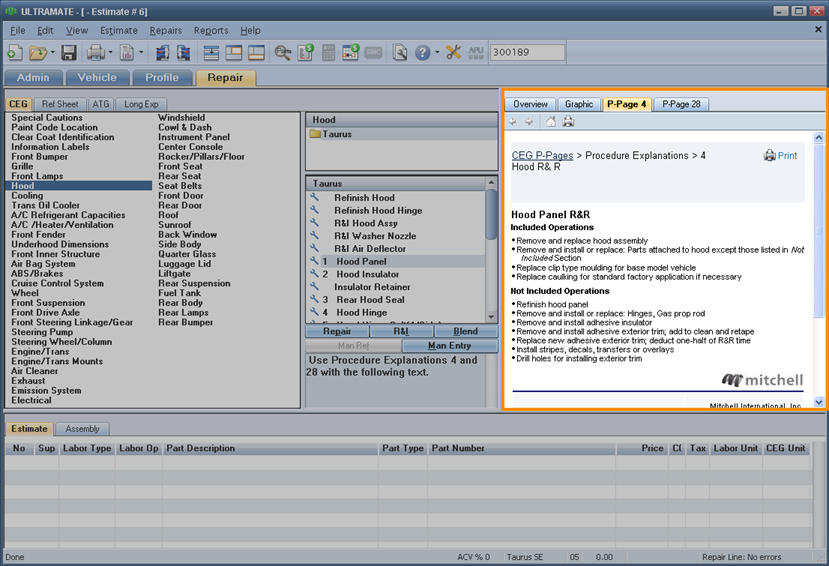
Note: P-Page tabs do not display for Ref Sheet items.
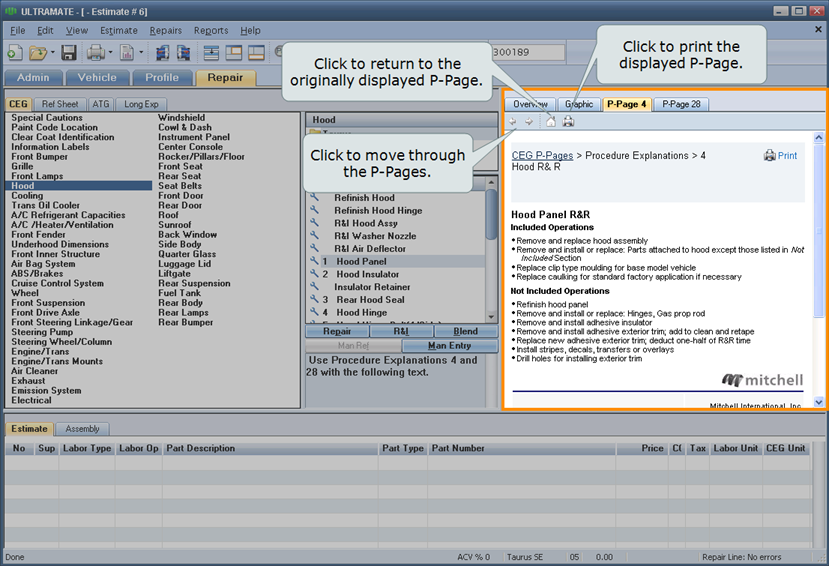 Move between the Graphic and P-Page tabs
- Press F8 (to put focus on the Image window).
- Then, press Ctrl+Tab (to move through tabs in the Image window).
Reference
Graphic tab
When you click a major part category in the CEG part list (for example, Front Bumper), the graphic for the part appears on the Graphic tab. The hot spots on the graphic (the numbers) correspond to the numbers on the part detail list, and when selected, highlight that part in the list. Pause your pointer over hot spot to view the part description. Double-click the hot spot to add the part to the repair lines. Hot spots for parts already in the repair lines are shaded red.
Note: ATG assemblies/ operations display an assembly-level graphic.
Overview tab
The Overview tab displays a graphic of the whole vehicle with hot spots for the major vehicle components that link to the part list. Hot spots for components with one or more parts already in the repair lines are shaded red.
Note: The Overview graphic is available when the vehicle is fully identified on the Vehicle tab.
|
See also: |
