
Compare Replacement Part Types
Use the Part Compare dialog box to compare the cost of different types of replacement parts.
The Part Compare dialog box provides part prices, labor and refinish time, and the total dollar amounts for four types of replacement parts (new, aftermarket, remanufactured, and recycled).
You can compare the cost of different replacement part types and decide which one you want to use in your estimate.
You can also select a replacement part and compare the cost to repair versus replace it.
How to
 Compare replacement part types
-
In your estimate, right-click the part you want to compare, and click Part Details.
-
On the Part Detail dialog box, click Compare.
-
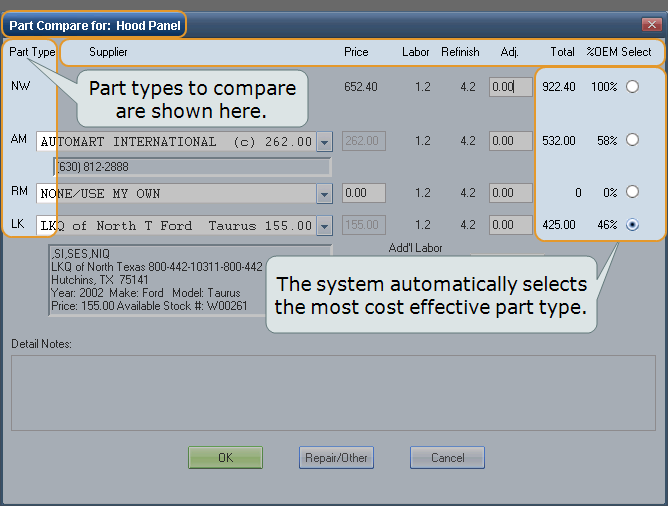
On the Part Compare dialog box, review your options for replacement part types.
The system automatically selects the most cost effective part type. You can override the default and select any part type shown.

For each part type (aftermarket, remanufactured, recycled), the system automatically lists the most cost effective supplier. You can override the default and select any supplier listed.

-
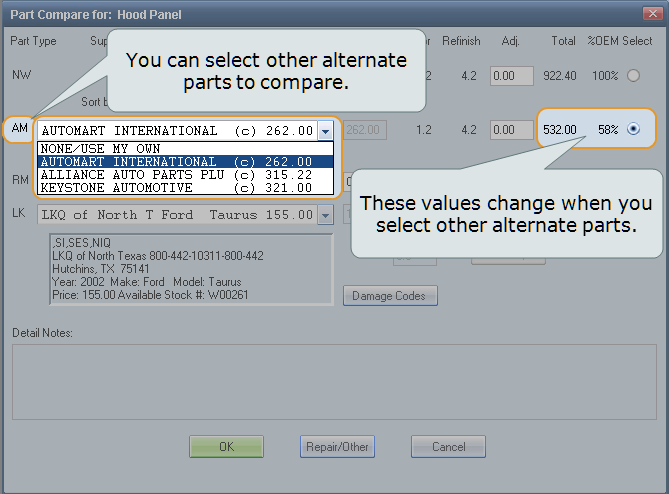
With MAPP installed, you can select different alternate parts from the AM list to use in the comparison.

-
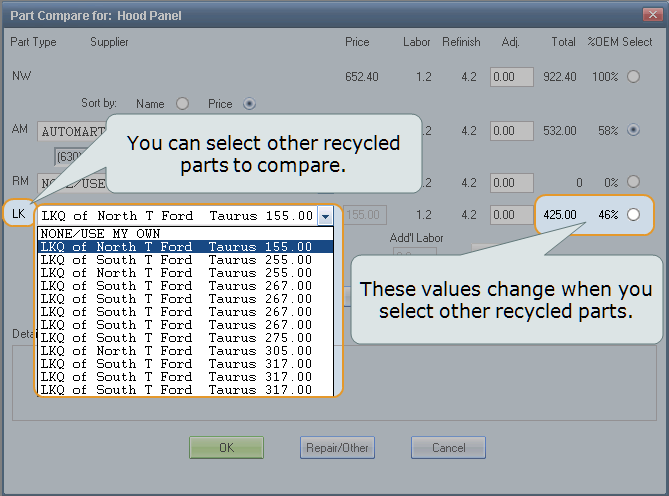
With QRP installed, you can select different recycled parts from the LK list to use in the comparison.

-
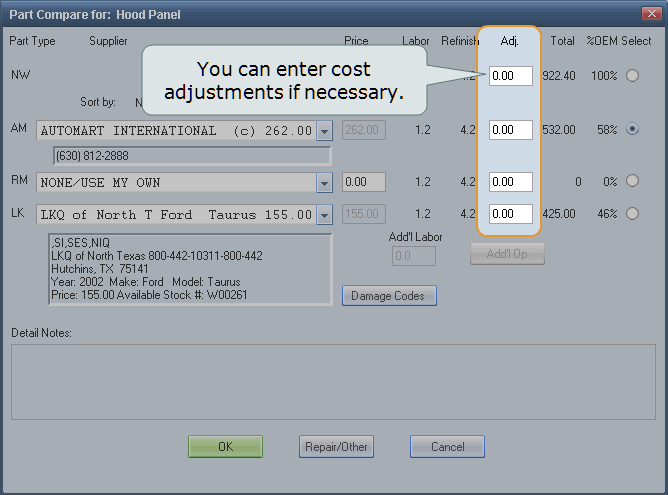
In the Adj boxes, enter cost adjustments such as markup or discounts, if needed.

-
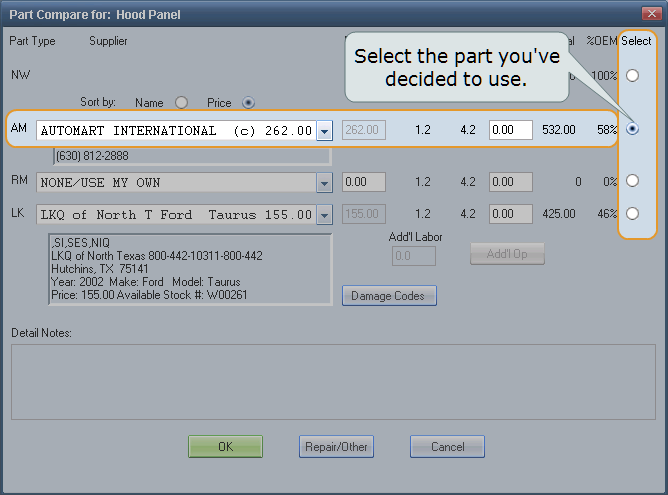
When you know which part and part type you want to use, click the Select option for that part type, and click OK.



Reference
Window Components – Part Compare dialog box
|
Part Type |
|
|
NW |
New, OEM |
|
AM |
Aftermarket New. New but not OEM. Parts appear in this list when MAPP is installed. “OE” appears after the vendor name if the part is an OE Discount part. A read-only field shows the vendor phone number if available. Note: The supplier/vendor name and phone number are exported with the estimate. |
|
RM |
Remanufactured Part. A used part that has been refurbished. |
|
LK |
Quality Recycled Part. A used part from a salvage/recycler vendor. Parts appear in this list when QRP is installed. Part detail information for the selected QRP (Quality Recycled Part) entry displays under this list. This information is provided by the part vendor and appears in the Detail Notes area (both on this dialog box and Part Detail). Note: The vendor name and phone number are exported with the estimate. |
|
Supplier |
The company name of the part supplier/vendor. If the data is available, the supplier/vendor can be selected for AM, RM, and LK parts. |
|
Sort by |
Click the sort option for the AM, RM, and LK lists:
The selected sort order becomes the default for your workstation. Administrative rights are not required to change the sort order. Note: Regardless of sort order, "None/Use My Own" always appears at the top of the list. |
|
Price |
The price for the selected part, according to supplier. |
|
Labor |
The labor hours for the selected part. |
|
Refinish |
The refinish labor in hours for the selected part. |
|
Adj. |
Enter a price adjustment if necessary. QRP Note: If QRP is installed and a QRP part is selected, the Adj field for LK parts can be modified. (Click out of the field to see the adjusted Total.) You can choose a specific supplier or NONE/USE MY OWN. The default Adj amount is the LKQ/Used Part Adjustment from the estimate profile. |
|
Total |
The calculated total per supplier based on the price, adjustment, and labor. |
|
%OEM |
The percentage as compared to the OEM part price. |
|
Select |
Select the part you want to use in the estimate. Note: The system automatically selects the most cost effective part. |
|
Add'l Labor |
The number of additional labor hours related to a Quality Recycled Part. |
|
Add'l Op |
Click this button to insert an Add-to repair line for an additional operation related to a Quality Recycled Part. See Repair Line Additions. |
|
Damage Codes |
Click this button to see where the damage codes are located. |
|
OK |
Click this button to accept the entries, add the selected part to the estimate repair lines, and return to the estimate. Note: If multiple parts were available, the Part Detail dialog box appears after the selected part is added to the repair lines. |
|
Repair/Other |
Click this button to display the Labor Operation dialog box where you can compare the cost of repairing the part to the cost of replacing it. |
|
Cancel |
Click this button to cancel all entries and return to the dialog box. |
|
See also: |
