
Compare Repair versus Replace
Use the Labor Operation dialog box to enter repair information and compare it to the cost of a replacement part.
You can compare the cost of repairing the existing part to the cost of replacing it with a new or used part.
By default, the system compares the selected part to a recycled part. You can change the comparison part type to Aftermarket or OE New on the Options preferences tab.
How to
 Compare the cost of repair to the cost of a replacement part
-
In your estimate, right-click the part, and click View Detail.
-
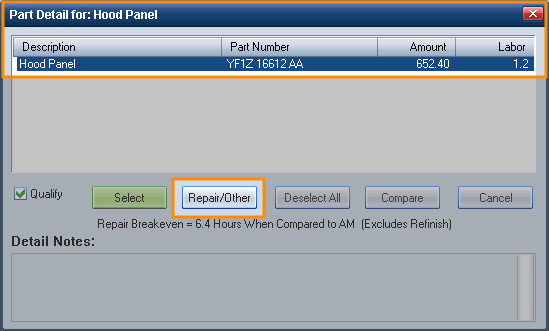
On the Part Detail dialog box, click Repair/Other.
-
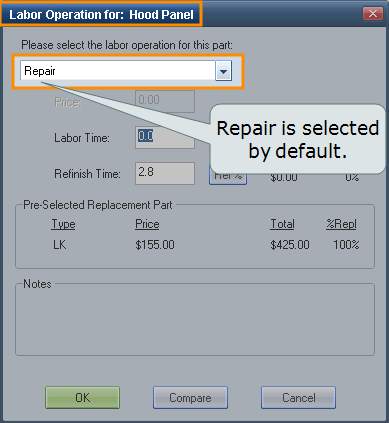
On the Labor Operation dialog box, make sure Repair is selected.
Note: Repair is the correct labor operation for comparing the cost of part repair to the cost of a replacement part.

-
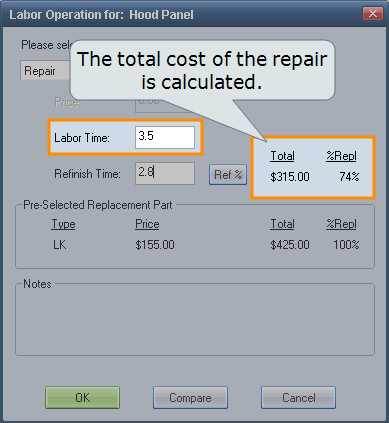
Enter the amount of Labor Time needed to repair the part, and tab out of the field. The total cost for the repair and the percentage of that cost compared to the replacement part is calculated.

-
Compare the Total cost to Price of the replacement part.

Note: The replacement part type defaults to LK (i.e., recycled) unless you selected a different part type on the Part Compare dialog box.
- Make your selection:
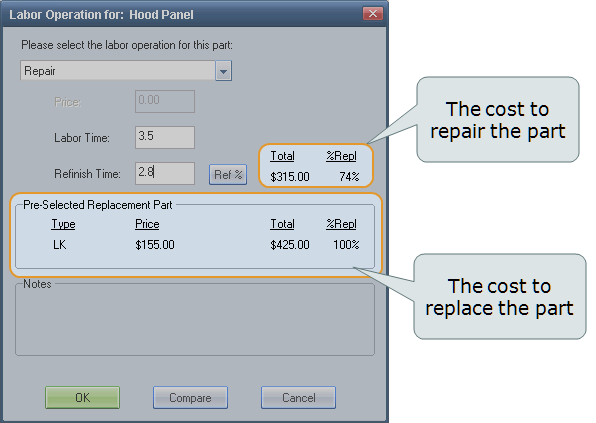
- To repair the part, click OK to add the repair information to the estimate.
- To replace the part, click Compare, and then on the Part Compare dialog box, click OK to add the selected replacement part to the estimate.
Reference
Window Components — Labor Operation dialog box
|
Please select the labor operation for this part |
Click the arrow in this field to display a list of labor operations. Select the labor operation you want to use for the part:
|
|
Price |
Enter a price for the selected operation. Note: For Paintless Repair, you can manually enter a price to override the PDR Calculator amount. The repair line displays an asterisk to indicate the system value was modified. |
|
Labor Time |
Enter a labor time for the selected operation. |
|
Click this button to open the PDR Calculator. Note: This button is available if the Paintless Repair value-added option is active and the selected labor operation is Paintless Repair. |
|
|
Refinish Time |
Enter a refinish time for the selected operation. |
|
Ref% |
Click this button to apply a preset percentage to the full CEG refinish time. This percentage value is entered on the Calculations profile tab. |
|
Total |
The total dollar amount to repair the part based on the information you entered. Note: This field is active when the Repair labor operation is selected. |
|
%Repl |
The percentage of cost to replace the part compared against the Repair Breakeven settings you selected in Preferences. Note: This field is active when the Repair labor operation is selected. |
|
Pre-Selected Replacement Part |
Displays replacement part information (either the most cost effective, determined by the system, or your selection from the Part Compare dialog box).
|
|
Notes |
Displays notes related to your selections. |
|
OK |
Click this button to add the part and repair information to the estimate repair lines and return to the estimate. Note: If multiple parts were available, the Part Detail dialog box appears after the part is added to the repair lines. |
|
Compare |
Click this button to display the Part Compare dialog box. |
|
Cancel |
Click this button to cancel all entries and return to the dialog box. |
|
See also: |
