
Download Alternate Parts and Suppliers (MAPP Matrices)
Use Mitchell's Alternate Parts Program (MAPP) to automatically include non-OEM parts (alternate parts) in your estimates. Alternate parts include Alternate New, Remanufactured, and OE Discount parts, as well as Recored, Remanufactured, Rechromed, and alternatives to OEM parts.
To use MAPP, first download lists of participating non-OEM parts and suppliers (these lists are called "MAPP matrices"), and then modify a profile to use one of these matrices when you write estimates.MAPP is a value-added option.
How to download and use non-OEM parts in your estimates
 1. Download MAPP matrices
MAPP matrices are lists of pre-qualified alternate parts suppliers that deliver parts to a defined geographic region. Mitchell gives you the matrix IDs.
- On the Utilities menu, point to Host Communications, and click Initiate Host Communications.
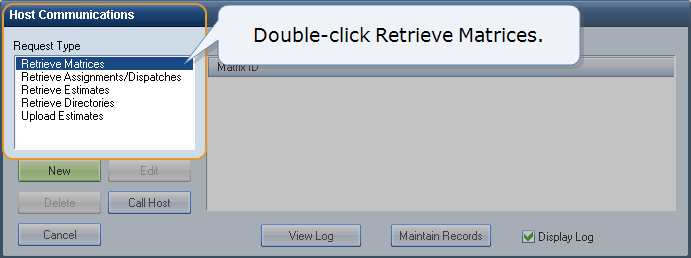
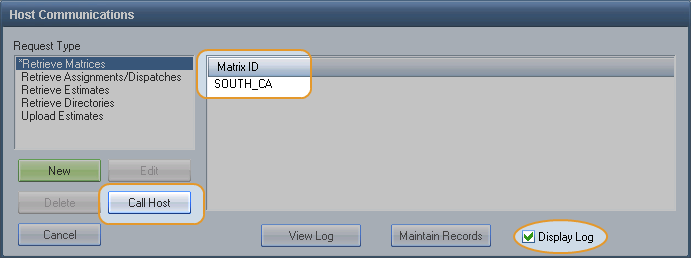
On the Host Communication dialog box, in the Request Type list, double-click Retrieve Matrices.
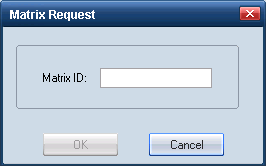
In the Matrix ID text box, type the name of the matrix you want to retrieve (provided by Mitchell), and click OK.

The Host Communications dialog box appears, and the requested matrix appears in the panel to the right.
Note: The Display Log check box is selected by default. The communication log appears when host communications are complete. Mitchell recommends that you view the log once the matrix is downloaded.
- On the Host Communication dialog box, click Call Host. When the matrix is downloaded, the View Log dialog box appears.
- Click OK to close the View Log dialog box.
- When you are finished downloading matrices, click Cancel to close the Host Communications dialog box.
The process to retrieve MAPP matrices is complete. To use MAPP data in an estimate, select the matrix in your system profiles.
- Go to the next procedure, Modify a profile to use a MAPP matrix when you write estimates.
 2. Modify a profile to use MAPP
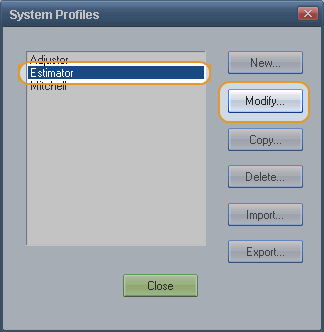
- On the System Info menu, click System Profiles.
On the System Profiles dialog box, select a profile that you want to use for MAPP search, and click Modify.

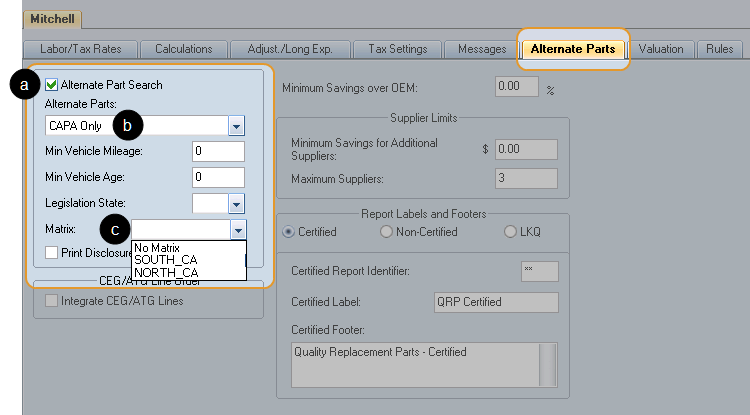
- On the Profiles window, click the Alternate Parts tab, and do the following:
- Select the Alternate Parts Search check box.
- In the Alternate Parts list, select the type of alternate part you want to search for when writing estimates.
In the Matrix list, select the matrix to use for the search.
- On the File menu, click Save, and then click Yes at the prompt to save changes.
- Use this profile when you want to create an estimate using alternate parts.
See also: | Automatically use alternate parts in your estimates |
